Accelya Cargo
Redesigning the messaging and configuration screens of FLX Cargo, moving them from a dense legacy desktop client to a clear, consistent web app.
A short film cut from the real screens in the Accelya Cargo design file, with generated ambient music. Names and data are sample content from the mock-ups.
Accelya Cargo at a glance.
Keep the data analysts rely on, but show the common fields first.
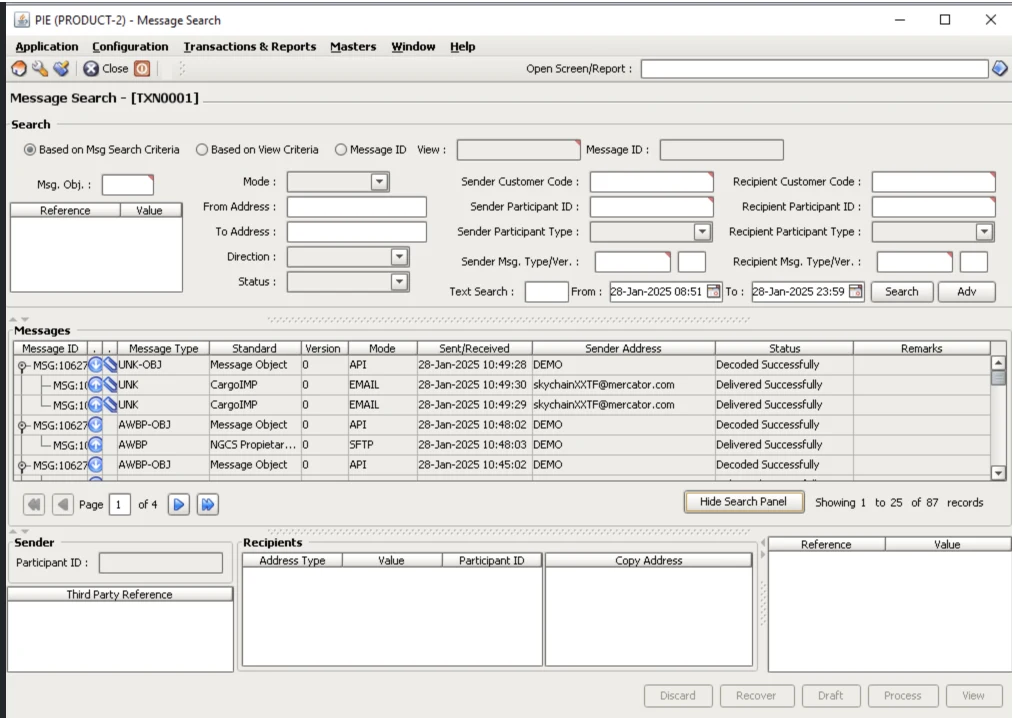
Cargo messaging lived in a legacy desktop client: every search field, result, sender, recipient and reference panel on one crowded screen, with key actions hidden in right-click menus.
A web redesign on a shared layout: a focused search with advanced options on demand, clean result tables with row actions, and details and child records in modals.
Analysts rely on dense data. We kept the data, but showed the common fields first and put the rest one click away.
I co-designed 8 flows with Shruti, across UX and UI: message search, compose, forwarding, message format, element definition, EDIFACT envelopes and double signature.
Powerful, but hard to read.
Cargo systems exchange a constant stream of standard messages between airlines, handlers and partners. The tools to search, compose and configure them worked, but they were built for another era.
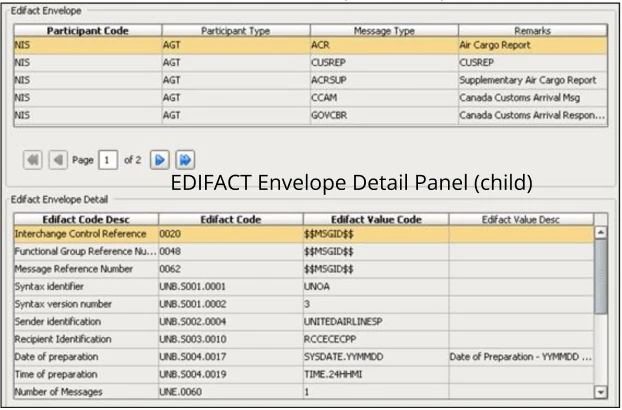
The legacy client packed search, results and message details into one window, in small type and grey panels. Configuring EDIFACT envelopes meant editing a parent table and a child table side by side, and adding a child record was tucked inside a right-click menu. The redesign had to keep all of that power while making it easier to find and use.
Everything at once
Search fields, results, sender, recipients and references all competed for space on a single screen.
Hidden actions
Key steps, like adding an envelope detail, sat behind right-click menus that were easy to miss.
No shared pattern
Each module looked and behaved a little differently, so every new screen had to be learnt from scratch.
…keep the depth cargo analysts depend on, while making every screen follow one clear pattern: search, scan, act?
Understand the system before redrawing it.
Before drawing a new screen, we took apart the old ones: every field, panel and action, the real messages they handle, and the rules product owners needed to keep.
Legacy screen audit
Reference boards of the old Message Search, Message Details and EDIFACT screens, field by field.
Real message formats
Raw Cargo-IMP and EDIFACT samples, so layouts fit what analysts actually read, line by line.
Product owner reviews
Requirements and open questions captured as notes above each flow, and settled with the POs.
Two approaches
EDIFACT was designed twice, a first version and a “new approach”, to compare before choosing.
 12345
12345The legacy Message Search window, from the reference board in the design file.
- 1Close to 20 search fields and a reference table, all visible at once.
- 2Advanced options behind a small “Adv” button.
- 3Results in a small, dense grid, with icons for message state.
- 4Sender, recipients and references stacked as more panels below.
- 5A row of actions at the bottom, greyed out until a message is picked.
Every field shown, all the time.
→So weLead with the common fields; open the rest on demand.Actions hidden in menus and toolbars.
→So wePut actions on the row, with a tooltip for each.Details in separate windows.
→So weOpen details and child records in modals, in context.Same data, a clearer structure.
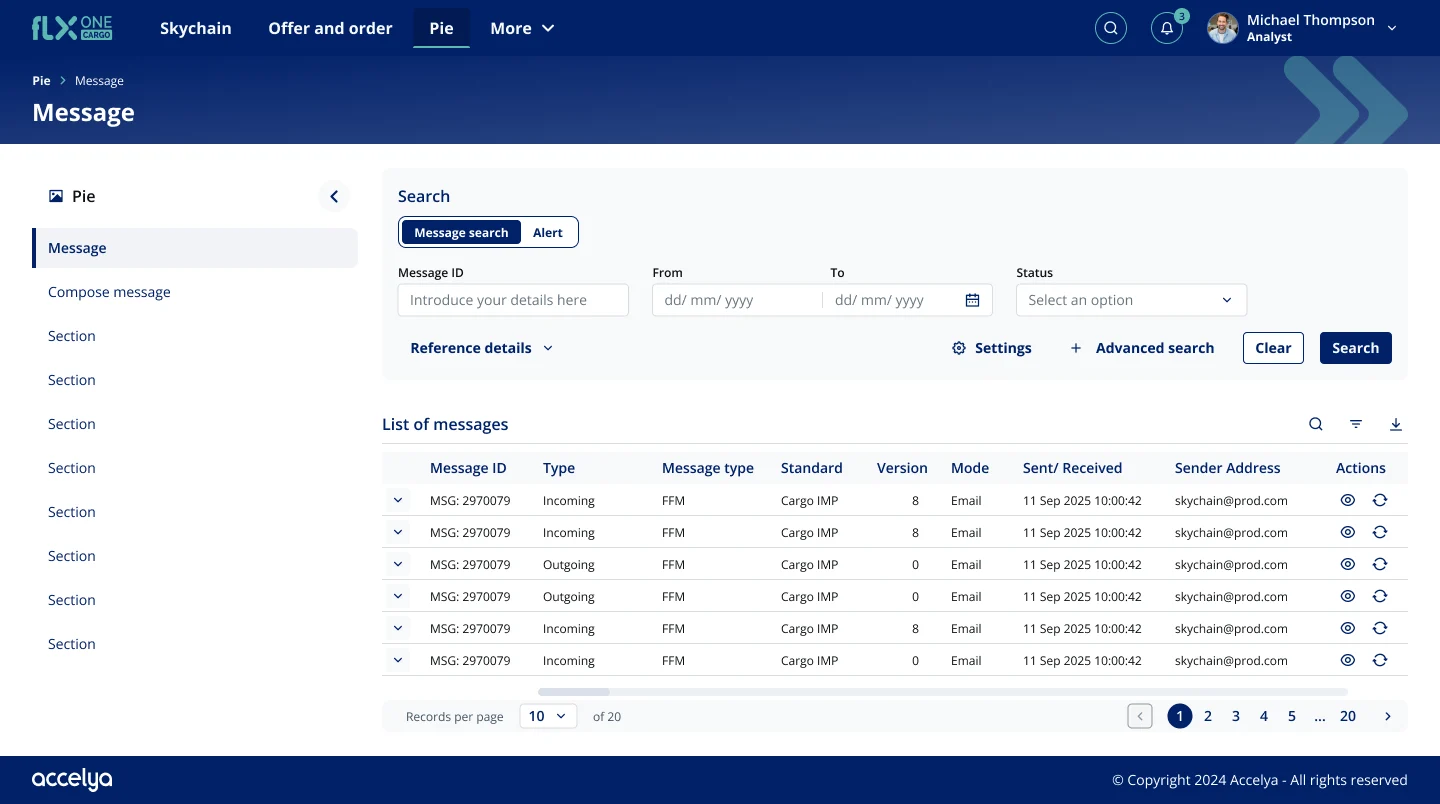
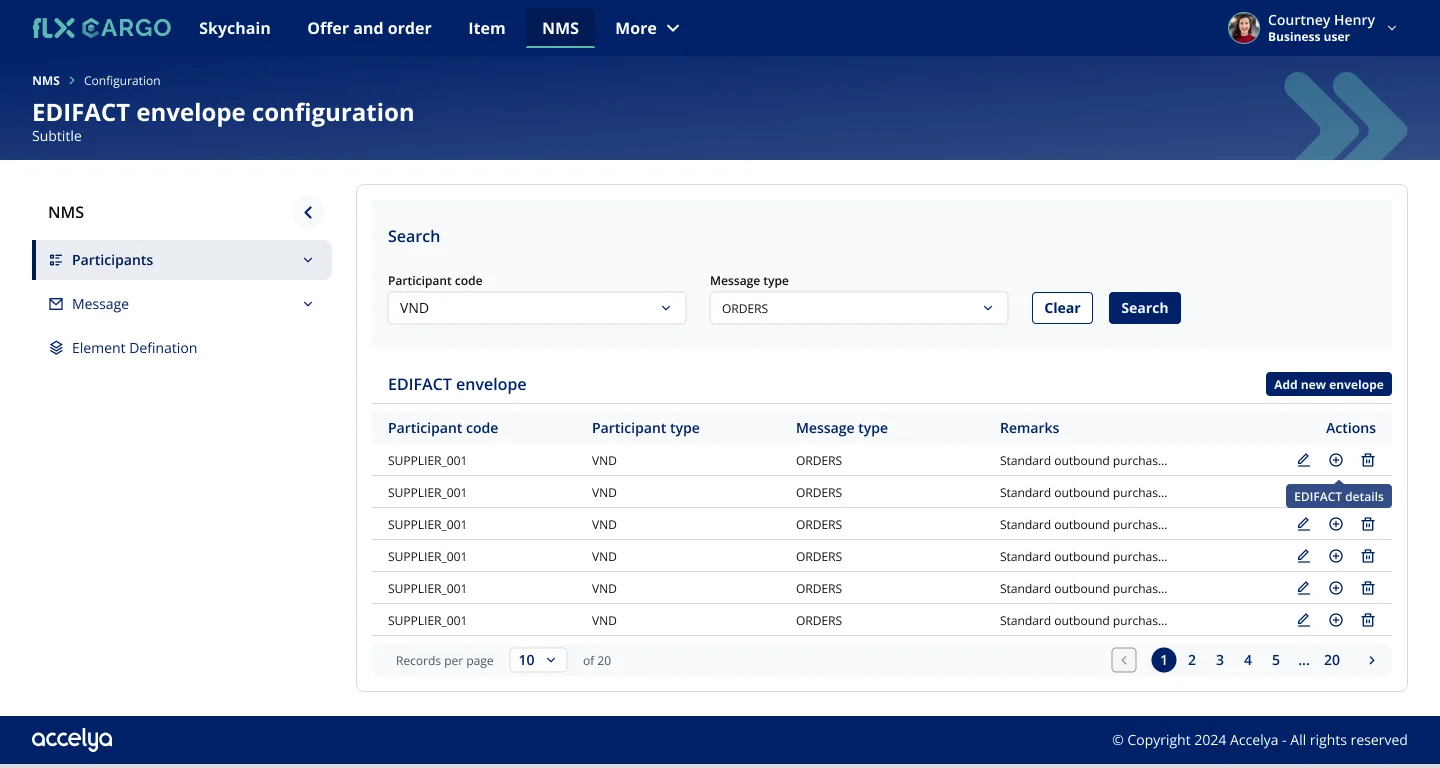
Every module moved onto one layout: a top bar for products, a breadcrumb and page title, a side menu, a search panel and a results table. Switch between before and after.
Message search
- BeforeClose to 20 fields, a results grid and three detail panels in one window.
- AfterFour fields up front, Advanced search and reference details on demand, and details in a modal.
EDIFACT envelopes
- BeforeA parent and a child table on one screen, with “Add child detail” in a right-click menu.
- AfterSearch first, then edit, add details or delete from each row, with the child records in a modal.
One layout everywhere
Header, breadcrumb, side menu, search and table in the same place on every screen.
Actions you can see
Edit, add and delete icons on each row, with tooltips, replace hidden menus.
Depth on demand
Advanced search, reference details and child records open only when you need them.
The flows I co-designed.
The design file is organised by module, with each flow laid out screen by screen and annotated for developers. These are the flows Shruti and I designed together.
Find any message, fast.
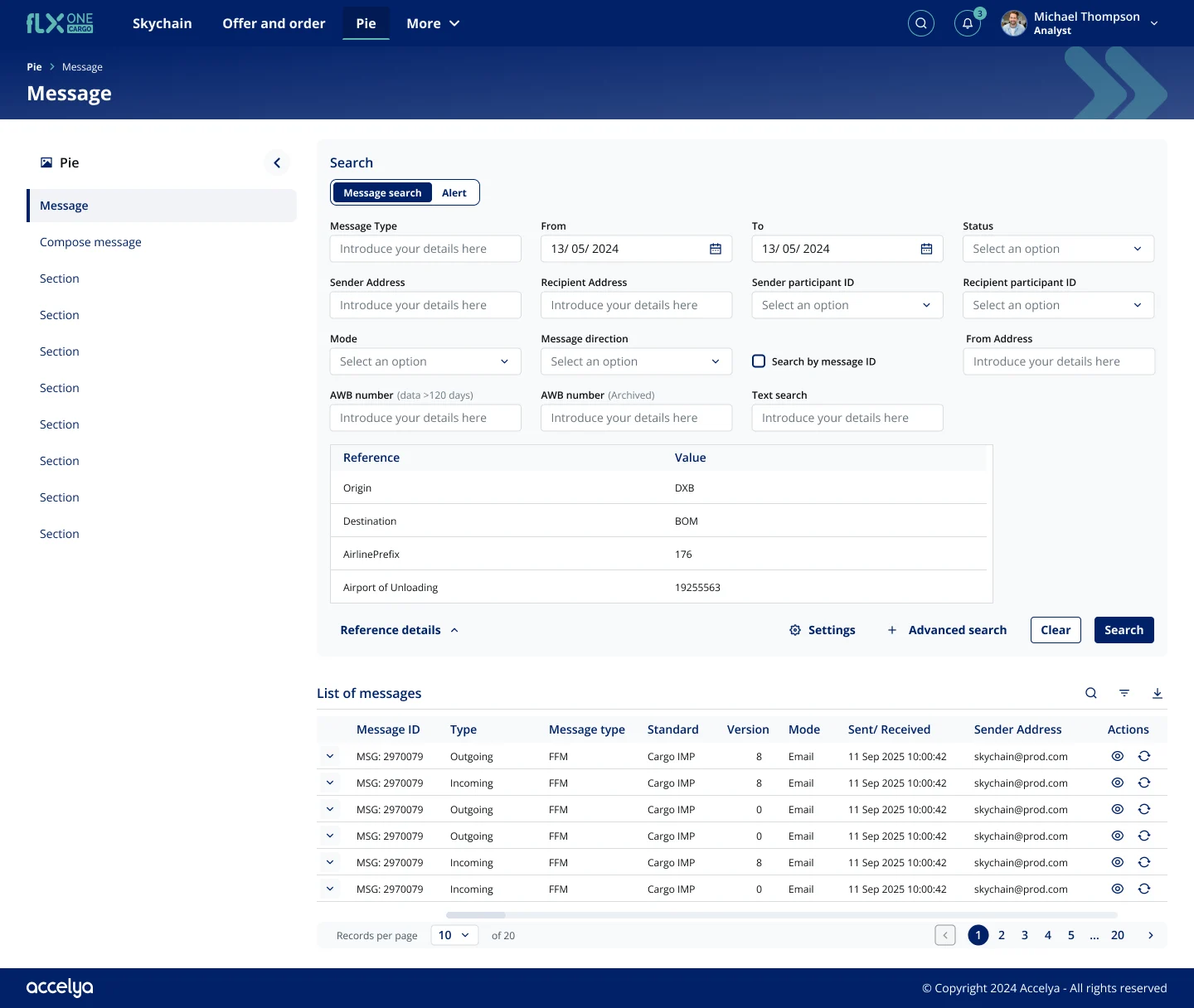
A short search covers the everyday case: message ID, date range and status. Advanced search opens the full set of filters, and reference details such as origin, destination and airline prefix sit in their own table.
- Toggle between message search and alerts
- Expand any row to see its child messages
- View or reprocess from the row
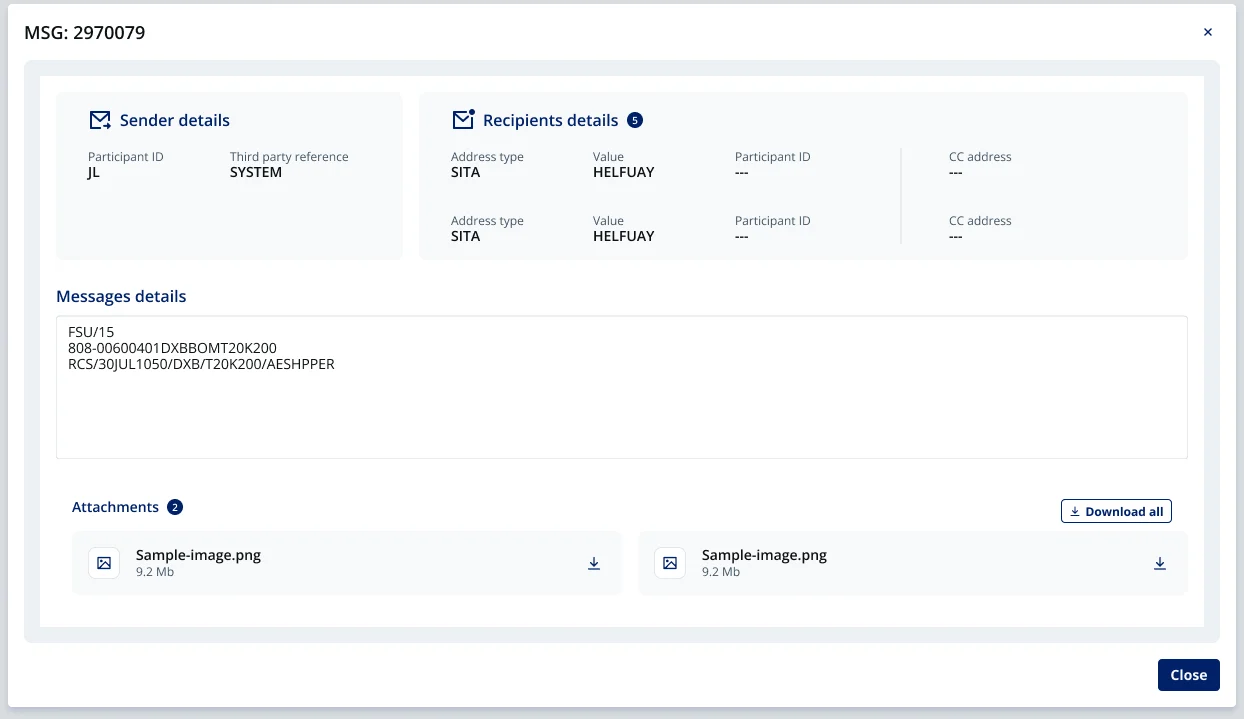
Sender, recipients and content, side by side.
Details open in a modal instead of a new window: sender and recipients as cards, the raw message below, and attachments you can download one by one or all at once.
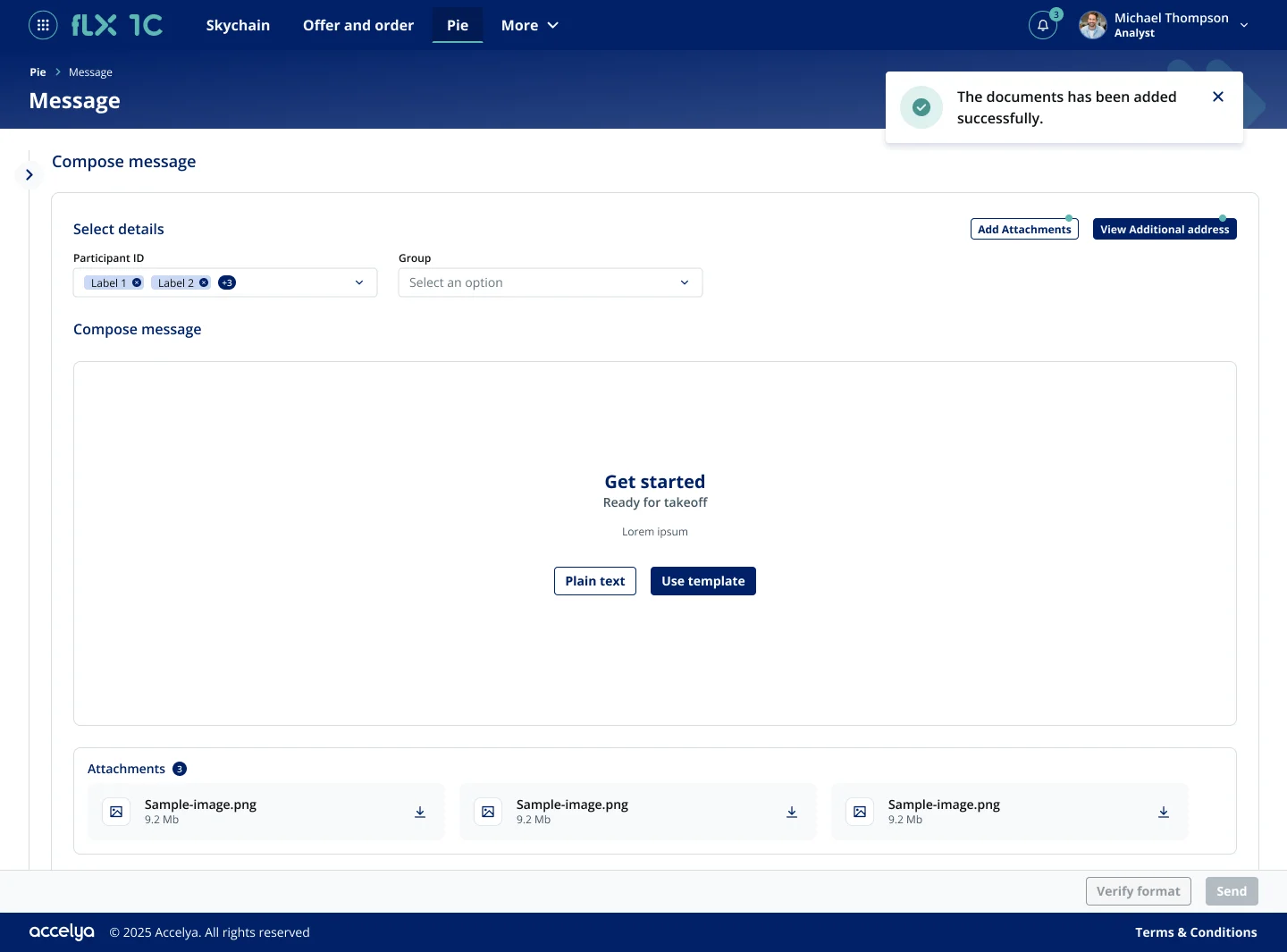
Write in plain text, or start from a template.
Pick participants or a group, then choose plain text or a template. Attachments and additional addresses are added from the top, the format is verified before sending, and a toast confirms each step.
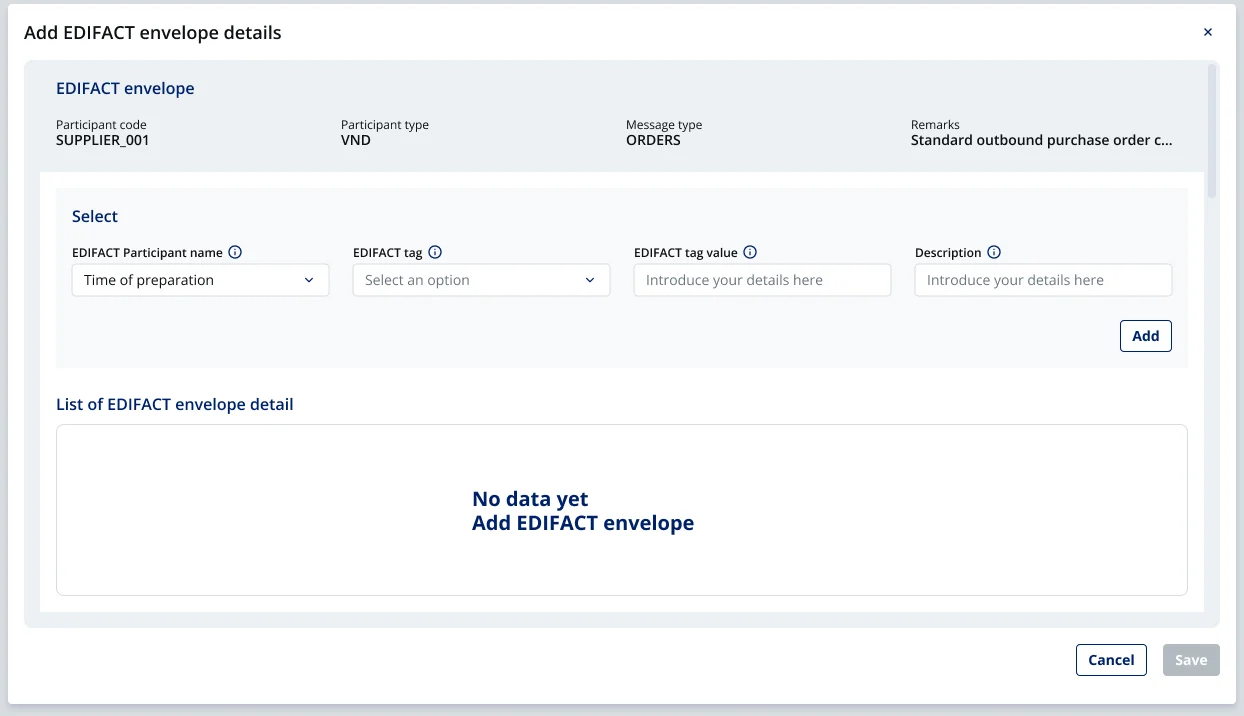
Parent and child records, without the right-click.
Envelope details now open from a visible row action into a modal. The parent record stays on top for context, each field has a help tip, and an empty state shows what to do first.
Click through the real screens.
Three flows, screen for screen from the design file. Pick a flow and click where the guide points, or use Next and Back.
Every screen is exported from the Accelya Cargo design file. Names and data are sample content from the mock-ups.
Set up once, trust it every day.
Behind every message are rules: who signs it, where it is forwarded, which format version goes out. These screens follow the same search-and-table pattern, so admins already know their way around.
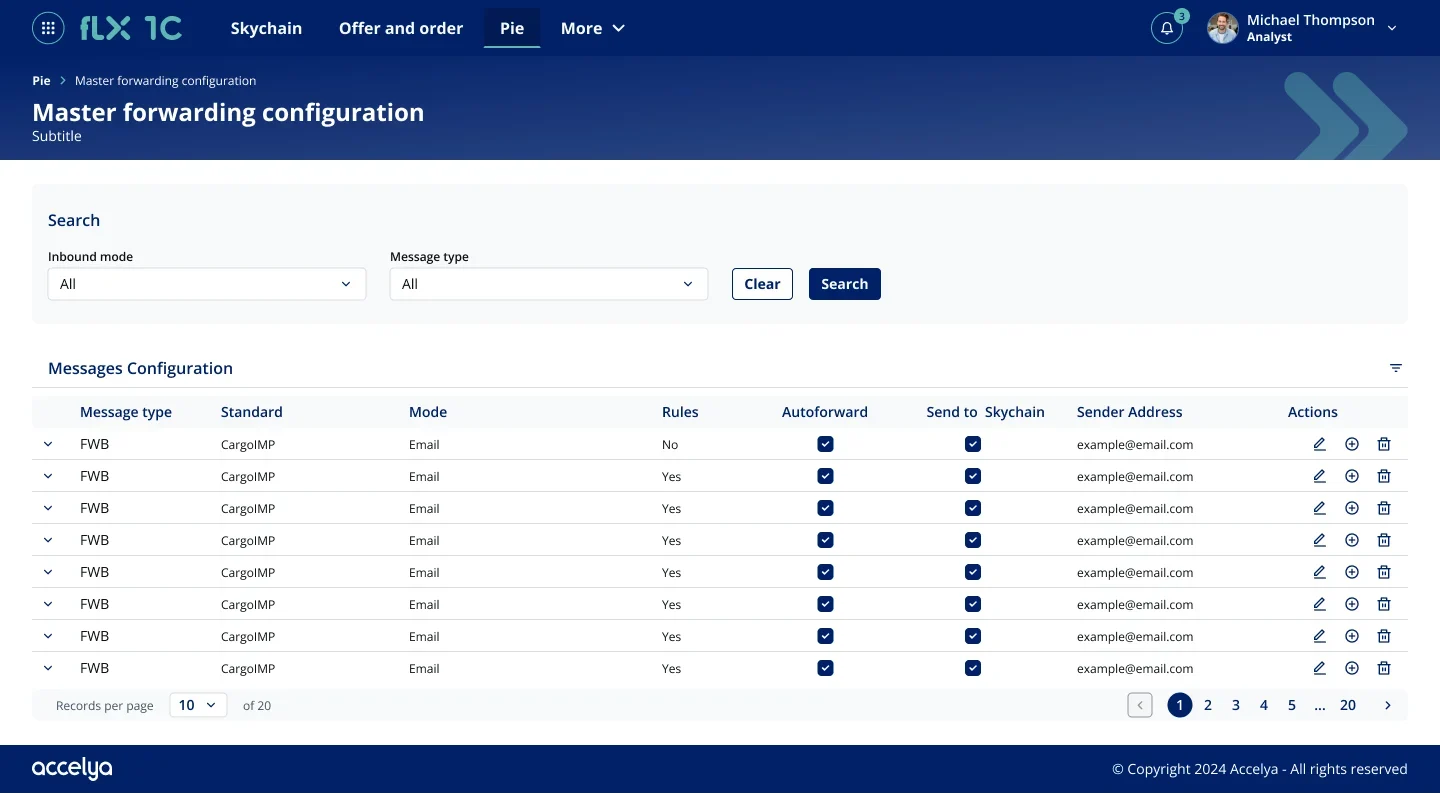
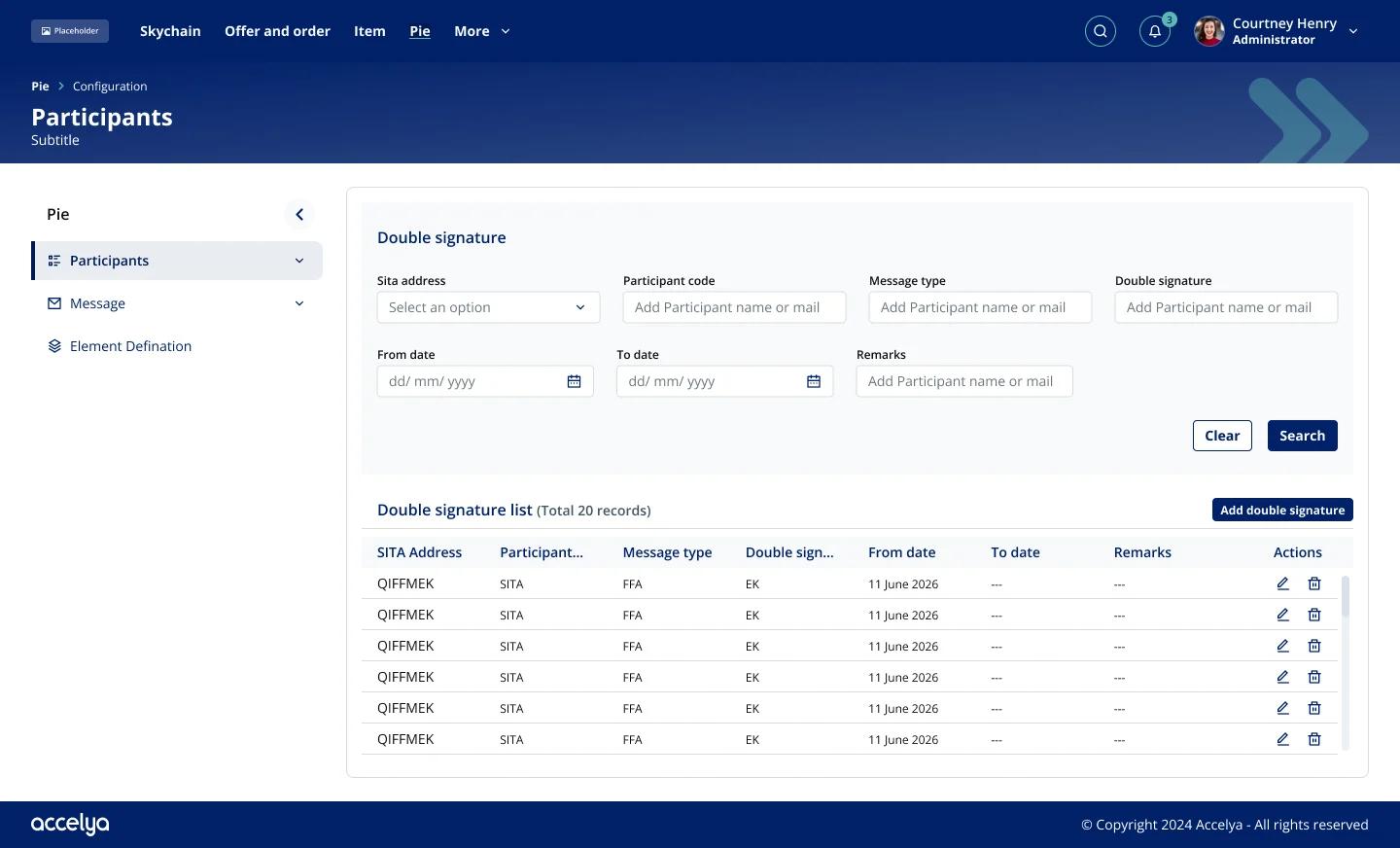
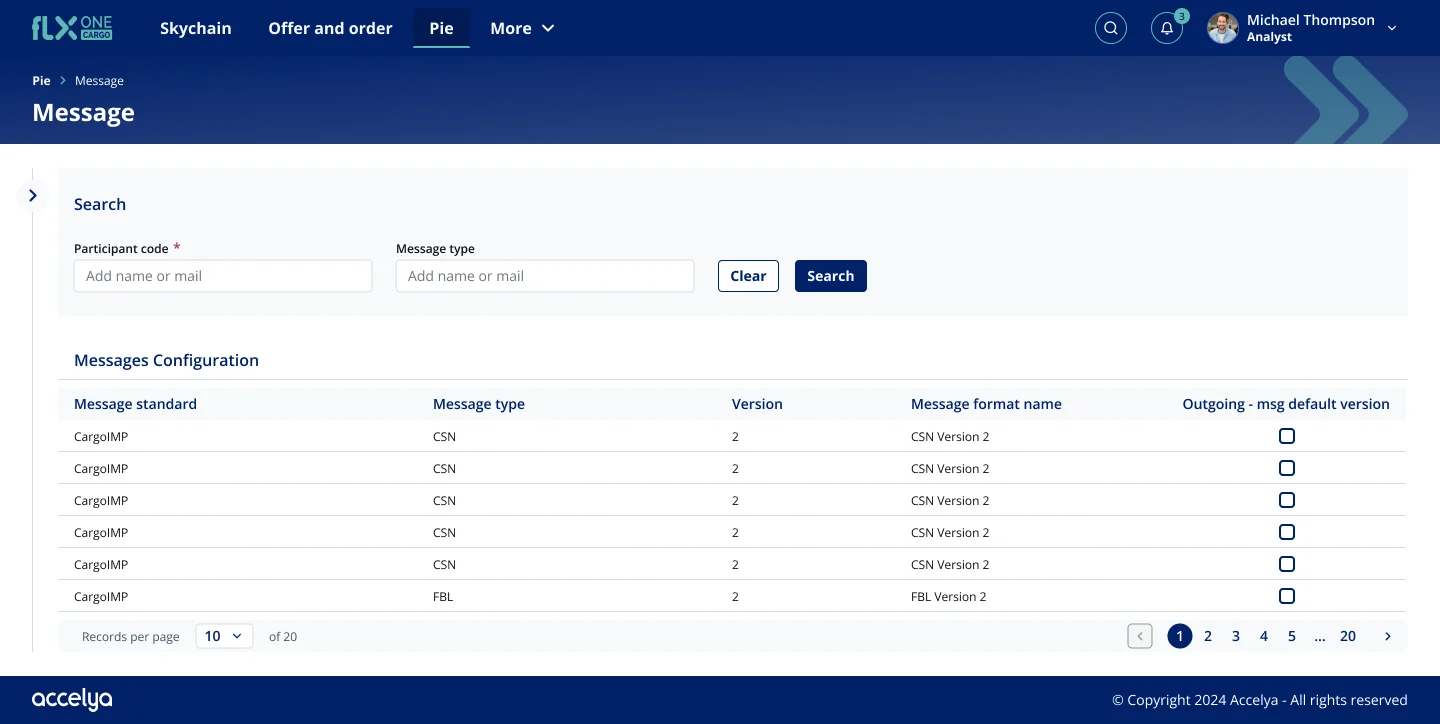
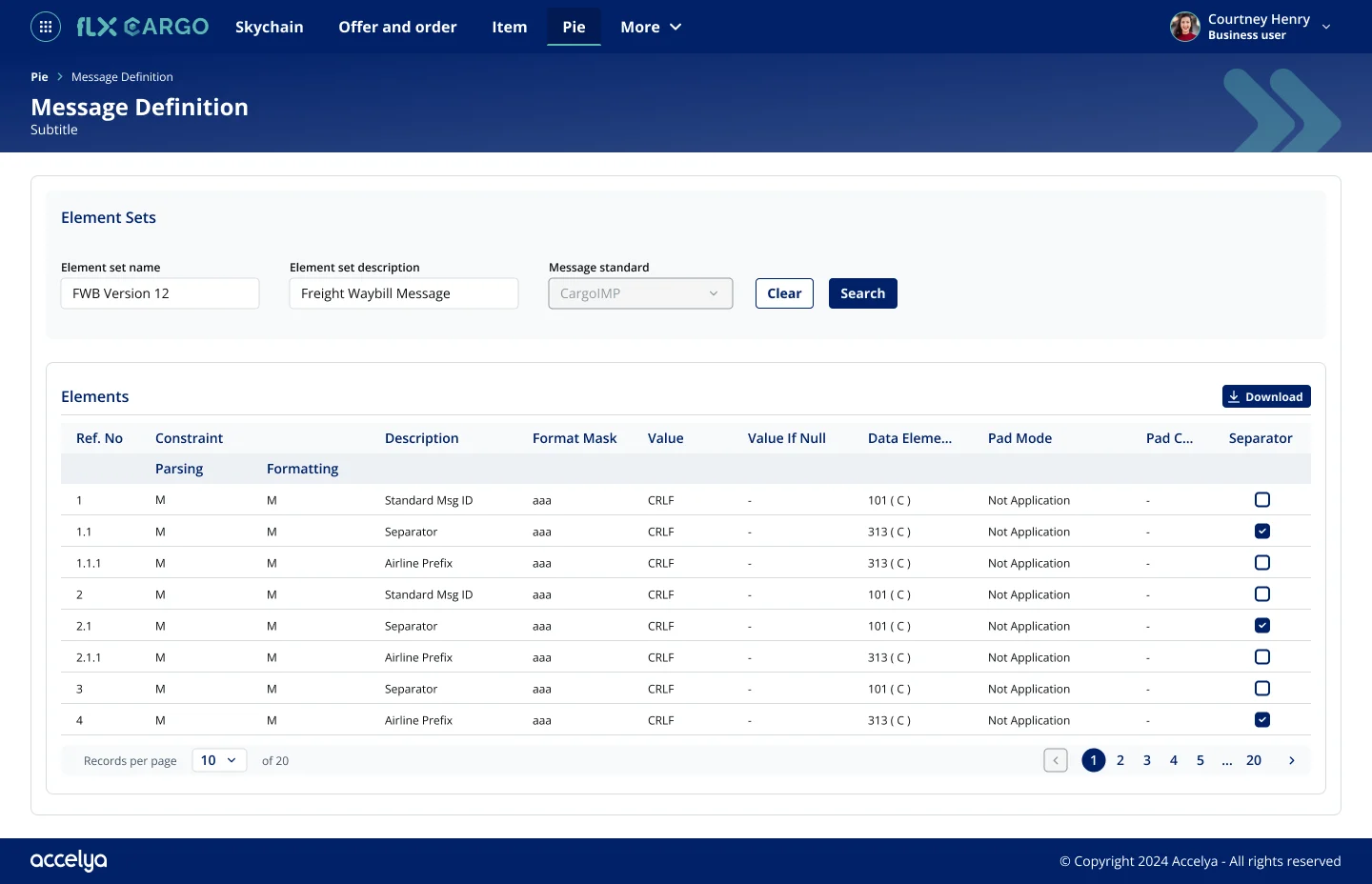
A file built for developers.
The Figma file is the developers’ source of truth. A file log tracks every feature, who owns the UX and UI, and which release it lands in.
Each flow sits in its own section, with explanation bars above the screens that say what happens, in what order and in which state: adding, editing and deleting rows, empty states, confirmations and success messages.
Flows co-designed
Message search, compose, forwarding, format, element definition, EDIFACT (two approaches) and double signature.
Modules in the file
Currencies, participants, messages and element definition, plus login and menu patterns.
Shared layout
Header, side menu, search panel, tables and modals reused across every module.
What enterprise redesign taught me.
In enterprise tools, people already know the old system by heart. The job isn’t to remove what they rely on, but to make it easier to find.
Working from the legacy screens first, and keeping every field accounted for, made it easier to agree with the team on what could move behind a click and what had to stay visible.